How to Fix Indexing Problems: Complete SEO Guide for 2026
If your pages are not appearing in Google Search, the problem may be related to crawling, indexing, technical SEO, content quality, canonicalization, or search engine directives.
The fastest way to diagnose an indexing problem is to use Google Search Console’s Page indexing report and URL Inspection tool, then determine whether Google can crawl the URL, whether the page is allowed to be indexed, whether another URL has been selected as canonical, and whether the page provides enough value to be included in search results.
In this guide, you’ll learn how to identify and fix the most common Google indexing problems, including robots.txt blocking, noindex tags, duplicate content, canonical issues, crawl errors, soft 404s, redirects, orphan pages, JavaScript problems, sitemap issues, and newly published pages that have not yet been discovered.
Quick Answer: How Do You Fix Indexing Problems?
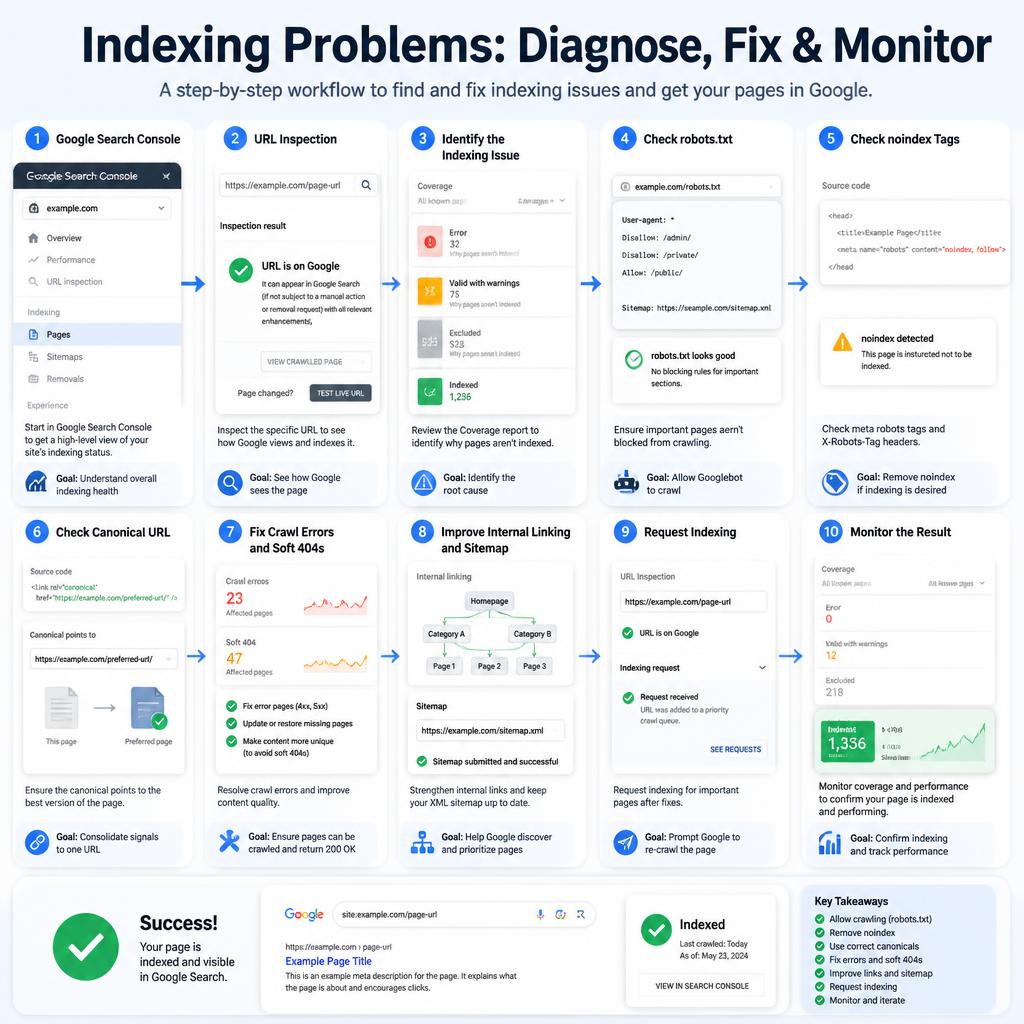
To fix an indexing problem:
- Open Google Search Console.
- Check the Page indexing report.
- Inspect the affected URL with URL Inspection.
- Determine whether the problem is crawling, indexing, canonicalization, content, or technical.
- Fix the underlying issue.
- Make sure the page returns a valid HTTP status code.
- Check robots.txt and remove accidental crawl blocks.
- Remove
noindexif the page should appear in search. - Check the canonical URL.
- Add important pages to your XML sitemap.
- Add internal links to important pages.
- Request indexing for individual fixed URLs when appropriate.
- Monitor Google Search Console for changes.
Google emphasizes that a sitemap helps Google discover URLs but does not guarantee that every URL will be crawled or indexed. Similarly, requesting indexing does not guarantee immediate inclusion in Google Search.
What Are Indexing Problems?
An indexing problem occurs when a page that you want to appear in search results is not included in a search engine’s index.
However, it is important to understand that not every page excluded from Google’s index represents an SEO problem.
For example, you may intentionally prevent certain pages from being indexed:
- Login pages
- Shopping cart pages
- Internal search results
- Administrative pages
- Duplicate URLs
- Thin utility pages
- Private content
- Certain filtered or parameterized URLs
The goal is therefore not to get every URL indexed.
The goal is to make sure that important, useful, search-worthy pages are crawlable and eligible for indexing.
Google’s crawling and indexing documentation distinguishes several technical mechanisms, including robots.txt, canonicalization, page metadata, HTTP status codes, JavaScript rendering, and sitemaps.
Crawling vs. Indexing: What’s the Difference?
Understanding the difference between crawling and indexing makes troubleshooting much easier.
What Is Crawling?
Crawling is when a search engine crawler such as Googlebot accesses a URL and attempts to retrieve its content.
Google discovers URLs through:
- Internal links
- External links
- XML sitemaps
- Previously discovered URLs
- Other discovery mechanisms
A page can therefore have a crawling problem even before indexing becomes relevant.
What Is Indexing?
Indexing happens after Google processes a page and determines whether it should be included in its search index.
A page can be:
Crawlable but not indexed.
For example, Google may successfully access a page but decide that another URL is canonical, the content is duplicate, or the page does not currently meet its systems’ criteria for inclusion.
This distinction is critical because simply requesting another crawl will not necessarily solve an indexing problem.
How to Identify Indexing Problems
1. Use Google Search Console
Google Search Console is the primary tool you should use when investigating Google indexing problems.
Open your verified property and navigate to the Page indexing report.
Look for categories such as:
- Indexed pages
- Not indexed pages
- Pages blocked by robots.txt
- Pages with
noindex - Duplicate pages
- Crawled but currently not indexed
- Discovered but currently not indexed
- Redirect errors
- Server errors
- Not found pages
- Soft 404 pages
The important question is:
Should this URL actually be indexed?
If the answer is yes, investigate why Google is excluding it.
If the answer is no, the exclusion may be completely normal.
2. Use the URL Inspection Tool
For an individual page, use Google’s URL Inspection tool.
Enter the complete URL into Search Console.
The tool can help you understand what Google knows about the URL and can also test the live version of the page. Google specifically recommends URL Inspection for troubleshooting individual pages and requesting indexing after fixing issues.
Check:
- Whether the URL is indexed
- Whether Google can crawl it
- The selected canonical URL
- User-declared canonical
- Indexing status
- Crawl information
- Page availability
- Structured data
- Mobile-related information where applicable
If Google has selected a different canonical URL, this can explain why the URL you’re inspecting isn’t appearing independently in search.
Common Google Indexing Problems and How to Fix Them
Problem 1: Robots.txt Is Blocking the Page
What Happens?
Your robots.txt file may contain a directive that prevents Googlebot from crawling the URL.
For example:
User-agent: *
Disallow: /private/
If an important page accidentally falls under /private/, Google may not be able to crawl it.
How to Fix It
Check:
https://example.com/robots.txt
Look for:
Disallow- Wildcards
- Directory-level restrictions
- Rules targeting Googlebot
- Rules accidentally covering important URLs
If the page should be crawlable, remove or modify the restrictive rule.
However, there is an important distinction:
robots.txt controls crawling; it is not a reliable method for removing a web page from Google’s index.
Google explains that a URL blocked by robots.txt can potentially still appear in search if Google discovers the URL through other sources. To prevent indexing, Google recommends mechanisms such as noindex or password protection instead.
Important Warning
Do not automatically remove every robots.txt rule.
Some rules may intentionally protect:
- Admin areas
- Search result pages
- Internal filters
- Temporary files
- Crawl-intensive URLs
- Private or unnecessary resources
Review each rule before changing it.
Problem 2: The Page Has a Noindex Tag
A noindex directive explicitly tells search engines not to include the page in their search results.
A typical implementation looks like:
<meta name="robots" content="noindex">
Google also supports noindex through an HTTP X-Robots-Tag response header.
Symptoms
Google Search Console may report the URL as:
Excluded by ‘noindex’ tag
How to Fix It
If the page should be indexed:
- Remove the
noindexdirective. - Check the HTTP response headers for
X-Robots-Tag. - Check your CMS settings.
- Check SEO plugin settings.
- Clear caching.
- Confirm the live page no longer contains
noindex. - Inspect the URL again in Search Console.
For WordPress websites, an SEO plugin or page-level setting can accidentally mark an important page as noindex.
Important Interaction With Robots.txt
A common mistake is blocking a URL with robots.txt while also expecting Google to process its noindex tag.
Google explains that crawlers need access to the page to discover the noindex directive. If robots.txt blocks crawling, Google may never see the noindex instruction.
Problem 3: Duplicate Content
Duplicate or highly similar pages can create indexing problems because Google may group multiple URLs together and select one canonical version.
For example:
https://example.com/page/
https://example.com/page/?source=google
https://example.com/page/?utm_campaign=test
These URLs may display essentially the same content.
Google’s systems can cluster duplicate URLs and select a canonical URL based on multiple signals.
How to Fix Duplicate Content
Depending on the situation, you can:
- Use a canonical tag.
- Redirect duplicate URLs.
- Remove unnecessary duplicate pages.
- Improve URL consistency.
- Update internal links to the preferred URL.
- Include preferred canonical URLs in your sitemap.
For example:
<link rel="canonical" href="https://example.com/preferred-page/">
Google recommends using redirects when you want to eliminate duplicate URLs and canonical signals when you need to indicate the preferred version among similar URLs.
Problem 4: Incorrect Canonical URL
A canonical tag can cause an indexing problem when it points to the wrong page.
For example, suppose this page:
https://example.com/seo-guide/
contains:
<link rel="canonical" href="https://example.com/old-guide/">
Google may interpret the old URL as the preferred version.
How to Fix It
Check:
- The canonical tag
- HTTP canonical headers
- Redirects
- Sitemap URLs
- Internal links
- HTTPS vs HTTP
- WWW vs non-WWW versions
For an indexable page, the canonical should generally point to the preferred, accessible version of that page.
Screaming Frog specifically identifies canonical URLs that point to blocked, redirected, 4xx, 5xx, or noindex URLs as problems worth reviewing.
Problem 5: Crawled – Currently Not Indexed
This is one of the most confusing indexing statuses.
It means Google has crawled the page but has not currently included it in the index.
There is no single technical fix for every URL in this category.
Possible causes can include:
- Weak or thin content
- Duplicate or highly similar content
- Poor internal linking
- Low-value pages
- Large numbers of similar URLs
- Content that does not provide enough unique value
- Temporary indexing decisions
How to Fix It
Start by evaluating the actual page.
Ask:
Does this page provide unique value compared with the other pages on my site and competing pages?
Improve:
- Original information
- Search intent alignment
- Content depth
- Examples
- Supporting evidence
- Internal links
- Page structure
- User experience
- Unique data or insights
Do not simply add words to the page.
A 3,000-word article can still be low-value if it repeats information without adding useful substance.
Problem 6: Discovered – Currently Not Indexed
This status is different from “Crawled – Currently Not Indexed.”
It generally means Google knows about the URL but has not yet crawled it.
Possible causes include:
- Recently published content
- Weak internal linking
- Large site architecture
- Many URLs competing for crawl attention
- Sitemap discovery without strong internal signals
How to Improve Discovery
Add internal links from relevant indexed pages.
For example, if you publish:
How to Fix Indexing Problems
link to it from:
- Your technical SEO guide
- Your Google Search Console guide
- Your crawling guide
- Your SEO audit guide
- Relevant blog articles
Important pages should not exist as isolated URLs.
Screaming Frog recommends ensuring important pages are linked from indexable pages to improve discovery and avoid relying on links from non-indexable pages.
Problem 7: Soft 404 Errors
A soft 404 occurs when a URL returns a successful HTTP status such as:
200 OK
but the page effectively tells users that the content does not exist.
For example:
https://example.com/product/old-product/
might return a normal 200 page saying:
Sorry, this product is no longer available.
Google may interpret this as a soft 404.
How to Fix a Soft 404
If the content no longer exists and has no relevant replacement:
Return:
404 Not Found
or:
410 Gone
If the content has moved to a relevant replacement:
Use a:
301 redirect
If the page should still exist:
Make sure it contains substantial, correctly rendered content and does not accidentally display an error or empty state to Googlebot.
Google’s documentation specifically recommends checking the rendered content and HTTP response when troubleshooting soft 404s.
Problem 8: Server Errors
Pages returning:
- 500
- 502
- 503
- 504
can create crawling and indexing problems.
What to Check
Investigate:
- Hosting problems
- PHP errors
- Database failures
- Server configuration
- CDN problems
- DNS problems
- Firewall restrictions
- Security plugins
- Excessive server load
If the error is temporary, Google may retry crawling later.
If server errors continue, however, important pages may become difficult for Google to access.
Problem 9: Redirect Problems
Redirect chains and loops can interfere with crawling.
For example:
Page A → Page B → Page C
is a redirect chain.
A loop is worse:
Page A → Page B → Page A
How to Fix Redirect Issues
Where possible:
- Redirect directly to the final URL.
- Remove unnecessary redirect chains.
- Avoid redirect loops.
- Update internal links to the final destination.
- Make sure the final URL returns 200 OK.
- Update sitemap URLs.
After making changes, test the URL in Google Search Console.
Problem 10: Pages Are Behind a Login
Google generally cannot index content that requires authentication.
Examples include:
- Customer dashboards
- Private accounts
- Members-only pages
- Internal company systems
- Password-protected resources
If a page is intentionally private, this is not an indexing problem.
If the content should appear publicly in search, make a publicly accessible version available.
Do not create a special hidden version solely for search engines. The publicly accessible content should accurately represent what users can access.
Problem 11: JavaScript Prevents Google From Seeing Important Content
Modern websites often rely heavily on JavaScript.
JavaScript itself is not automatically an indexing problem, but problems can occur when important content is unavailable or incorrectly rendered for search engines.
Potential issues include:
- Empty HTML before rendering
- Broken JavaScript
- Missing resources
- Client-side errors
- Content loaded only after user interaction
- Incorrect routing
- JavaScript-generated soft 404s
Google provides specific guidance for troubleshooting JavaScript-related search problems and soft 404 situations.
How to Troubleshoot
Use URL Inspection and inspect the live page.
Check whether Google can see:
- Main content
- Navigation
- Internal links
- Titles
- Important text
- Images
- Structured data
If essential content is missing from the rendered page, investigate the JavaScript implementation.
Problem 12: The Page Is Not in Your XML Sitemap
An XML sitemap helps search engines discover important URLs.
For example:
<url>
  <loc>https://example.com/important-page/</loc>
</url>
A sitemap is particularly useful for:
- Large websites
- New websites
- Sites with many pages
- Recently launched websites
- Complex website structures
However, a sitemap is a discovery signal, not an indexing guarantee. Google explicitly states that submitting a sitemap does not guarantee that URLs will be crawled or indexed.
Sitemap Best Practices
Include URLs that:
- You want indexed
- Return 200 OK
- Are canonical
- Are publicly accessible
- Contain useful content
Avoid filling your sitemap with:
- Redirect URLs
- 404 URLs
- Noindex URLs
- Duplicate URLs
- Unimportant parameter URLs
Problem 13: Poor Internal Linking
A page may be technically indexable but still difficult for search engines to discover.
This can happen when a page has few or no internal links.
These are often called orphan pages.
How to Fix Orphan Pages
Add relevant internal links from established pages.
For example:
Homepage
   ↓
SEO Guide
   ↓
Technical SEO Guide
   ↓
Indexing Problems Guide
This creates a stronger site structure.
Semrush’s current Site Audit documentation specifically includes internal linking, orphan pages, and crawl depth among the areas that can affect how easily important pages are discovered.
Problem 14: The Page Is Too New
Sometimes there is nothing technically wrong.
If you published a page recently, Google may simply not have crawled and processed it yet.
This is especially common with:
- New websites
- New domains
- Newly published articles
- Websites with few external links
- Large websites with many new URLs
Google states that recrawling can take anywhere from several days to several weeks and that requesting a crawl does not guarantee immediate inclusion.
Instead of repeatedly requesting indexing, make sure the page is:
- Internally linked
- Included in the sitemap
- Crawlable
- Indexable
- Canonicalized correctly
- Useful and unique

How to Fix Indexing Problems Step by Step
Step 1: Confirm the Problem
Search for the page in Google.
You can also use:
site:example.com/page-url
However, this should not replace Search Console because search operators do not provide the same diagnostic information.
Step 2: Inspect the URL
Open Google Search Console and use URL Inspection.
Check whether the URL is:
- Indexed
- Crawlable
- Available
- Canonicalized correctly
Google’s URL Inspection tool is specifically designed to troubleshoot individual URLs and verify whether problems have been fixed.
Step 3: Check Robots.txt
Open:
https://example.com/robots.txt
Confirm that the URL is not accidentally blocked.
Step 4: Check Noindex
Inspect the HTML source and HTTP headers.
Look for:
<meta name="robots" content="noindex">
Also check for:
X-Robots-Tag: noindex
Step 5: Check the Canonical
Make sure the canonical URL is correct.
The canonical should not point to:
- A 404 page
- A redirected page
- A noindex page
- A blocked page
- An unrelated page
Step 6: Check HTTP Status
Important indexable pages should normally return:
200 OK
Investigate:
- 3xx redirects
- 4xx errors
- 5xx errors
Step 7: Check Content Quality
Ask:
Would this page still be useful if search engines did not exist?
If the answer is no, the page may need substantial improvement.
Focus on solving the user’s search intent rather than simply increasing word count.
Step 8: Improve Internal Links
Add links from relevant, indexable pages.
Use descriptive anchor text and create logical topic clusters.
Step 9: Check the Sitemap
Confirm that the preferred canonical URL is included in your sitemap.
Step 10: Request Indexing
After fixing the issue, you can use URL Inspection to request indexing for an individual URL.
Do not repeatedly submit the same URL expecting it to accelerate Google’s systems.
Google states that there is a quota for individual indexing requests and that repeatedly requesting the same URL will not make it crawl faster.
How to Check if a Page Is Indexed
There are several ways to investigate indexing.
Method 1: Google Search Console
This is the preferred diagnostic method.
Use:
URL Inspection → Enter URL
Method 2: Google Search
Search:
site:example.com/page-url
This can provide a quick indication, but it should not be treated as a complete diagnostic tool.
Method 3: Page Indexing Report
For larger websites, use the Page indexing report to identify patterns across hundreds or thousands of URLs.
Look for recurring problems rather than fixing URLs individually without understanding the underlying cause.
Indexing Problems on WordPress Websites
WordPress websites can experience indexing problems because several different systems can control indexability.
Check:
WordPress Visibility Settings
Make sure the website is not configured to discourage search engines from indexing the site.
SEO Plugin Settings
Check page-level settings in your SEO plugin.
Look for:
- Index/noindex
- Canonical URL
- Robots directives
- Sitemap settings
Categories and Tags
Review whether your category, tag, author, and archive pages should actually be indexed.
Not every WordPress archive needs to appear in search.
Caching
Clear:
- WordPress cache
- Server cache
- CDN cache
- Browser cache where relevant
Caching can sometimes cause an old robots directive or page version to remain accessible.
Sitemap
Confirm that your SEO plugin is generating the expected sitemap and that important URLs are included.
Technical SEO Tools for Finding Indexing Problems
Google Search Console
Google Search Console should be your first tool for Google-specific indexing diagnostics.
It provides:
- Page indexing reports
- URL Inspection
- Sitemap reporting
- Crawl information
- Search performance data
Screaming Frog
Screaming Frog can crawl your website and identify technical SEO problems involving:
- Noindex directives
- Canonicalization
- Redirects
- Internal links
- Indexability
- Status codes
- Crawl depth
Its reports can also identify canonical URLs pointing to non-indexable destinations.
Semrush Site Audit
Semrush Site Audit provides technical SEO checks covering crawlability, indexability, canonicalization, internal linking, HTTPS, structured data, and other website issues.
Indexing Problems Checklist
Use this checklist whenever an important page is not indexed:
- ☐ Check Google Search Console
- ☐ Open the Page indexing report
- ☐ Inspect the specific URL
- ☐ Check whether Google can crawl the page
- ☐ Check robots.txt
- ☐ Check for
noindex - ☐ Check
X-Robots-Tag - ☐ Check the canonical URL
- ☐ Check HTTP status code
- ☐ Check redirects
- ☐ Check for duplicate content
- ☐ Check for soft 404
- ☐ Check server errors
- ☐ Check JavaScript rendering
- ☐ Check internal links
- ☐ Check for orphan pages
- ☐ Check XML sitemap
- ☐ Check content quality
- ☐ Make sure the page is publicly accessible
- ☐ Request indexing after fixing the problem
- ☐ Monitor Search Console afterward
Frequently Asked Questions About Indexing Problems
Why is my page not indexed by Google?
A page may not be indexed because it is blocked by robots.txt, contains a noindex directive, has a canonical pointing elsewhere, is duplicate or low-value, has technical errors, is difficult to discover, or has simply not been processed yet.
Use Google Search Console’s URL Inspection tool to identify the specific situation.
How long does Google take to index a new page?
There is no guaranteed indexing time.
Google states that crawling can take from several days to several weeks, depending on circumstances, and requesting indexing does not guarantee immediate inclusion.
Does robots.txt prevent indexing?
Not reliably.
robots.txt primarily controls crawling. A blocked URL can potentially still appear in search if Google discovers the URL elsewhere.
If your goal is to prevent a page from appearing in Google, use an appropriate method such as noindex or password protection rather than relying on robots.txt.
Does submitting a sitemap guarantee indexing?
No.
A sitemap helps Google discover URLs and understand which pages you consider important, but it does not guarantee that every URL will be crawled or indexed.
Should every page on my website be indexed?
No.
Some pages should intentionally remain outside the search index, such as private areas, duplicate URLs, internal search pages, and certain utility pages.
The objective is to ensure that your important search-focused pages are indexed.
Does requesting indexing make Google index a page?
No.
Requesting indexing asks Google to crawl a URL. It does not guarantee inclusion in search results.
Google also limits repeated individual indexing requests.
What is the difference between Crawled – Currently Not Indexed and Discovered – Currently Not Indexed?
Crawled – Currently Not Indexed generally means Google has crawled the URL but has not currently included it in the index.
Discovered – Currently Not Indexed generally means Google knows about the URL but has not yet crawled it.
The appropriate troubleshooting approach is therefore different.
Can duplicate content prevent indexing?
Duplicate content can cause Google to group similar URLs and select a canonical version rather than indexing every URL separately.
Use canonical tags, redirects, consistent internal links, and clean sitemap signals where appropriate.
How to Prevent Future Indexing Problems
Fixing an indexing issue is useful, but preventing the same problems from recurring is even better.
Create a regular technical SEO monitoring process.
Monitor Search Console
Check the Page indexing report regularly for significant changes.
Audit Robots.txt
Review robots.txt after:
- Website migrations
- Redesigns
- CMS changes
- Plugin changes
- Server changes
Monitor Noindex Directives
Pay particular attention to templates and automated systems that could accidentally apply noindex to large groups of pages.
Maintain Your Sitemap
Keep your sitemap focused on important, canonical, indexable URLs.
Improve Internal Linking
Important pages should be accessible through relevant internal links rather than existing as isolated URLs.
Audit Canonicals
Make sure canonical URLs point to valid, accessible pages.
Monitor Server Health
Repeated 5xx errors can create serious crawling problems.
Review New Content
When publishing new content, make sure it is:
- Internally linked
- Included in the sitemap
- Accessible without login
- Free of accidental noindex directives
- Canonicalized correctly
- Useful and unique
Final Thoughts
Indexing problems are rarely solved by one button in Google Search Console.
The correct approach is to identify why Google is not indexing the URL, fix the underlying problem, and then allow Google time to recrawl and process the change.
Start with Google Search Console, especially the Page indexing report and URL Inspection tool. Then check the technical fundamentals: robots.txt, noindex directives, canonical URLs, HTTP status codes, redirects, XML sitemaps, internal links, JavaScript rendering, and content quality.
Most importantly, remember that crawlability and indexability are not the same thing. A page can be crawlable but still not indexed, while a page blocked from crawling may not be able to communicate its indexing directives to Google.
A strong technical SEO strategy therefore focuses not on getting every URL indexed, but on making sure that your most important, useful, original pages are easy for search engines to discover, crawl, understand, and evaluate.
By regularly monitoring Google Search Console and conducting technical SEO audits, you can identify indexing problems earlier, fix their underlying causes, and maintain a healthier search-friendly website.